How to schedule TikTok videos (and the sharing settings to check first)
A step by step guide to scheduling TikTok videos ahead of time, including who can view, comments, Duet, Stitch and how to disclose branded content.
4 minute read

Software engineer and SaaS founder
In this article
TikTok is a lot of fun to watch and a lot of work to post to. Filming is only half of it. Then there’s editing, captions, sharing settings and finding a moment in your day to actually press the button.
Scheduling lets you batch the work. Film and edit when you’re in the zone, then line the videos up to go out over the following week or two.
In short: connect your TikTok account, upload your video, write a short caption, choose who can view it, set comments, Duet and Stitch, disclose any promotional content, then schedule it.
Step 1: Connect your TikTok account#
In PostGic, open Channels, choose TikTok and sign in to approve access. Once connected, your account shows up in the composer.
You can see what PostGic supports on each network on the channels page.
Step 2: Batch your videos#
Scheduling works best when you have a few videos ready at once. A simple batching routine:
- Pick 3 to 5 ideas from your content calendar.
- Film them in one session. Same outfit, same setup, much less time.
- Edit them in one session. Get into a rhythm instead of switching tasks.
- Upload them to your media library, so they’re ready to pick into a post.
PostGic’s Free plan supports videos up to 500 MB, and paid plans go up to 10 GB. Large videos upload in parts, so a dropped connection doesn’t mean starting again.
Step 3: Write a short caption#
On TikTok, the video does the heavy lifting. Keep the caption short and useful:
- Say what the video is about, in plain words people might search for.
- Add a few relevant hashtags, not dozens.
- Ask a question if you want comments.
If you’re posting the same video to YouTube or Instagram too, write the caption once in PostGic’s global editor, then click TikTok to adjust it just for TikTok.
Step 4: Choose your sharing settings#
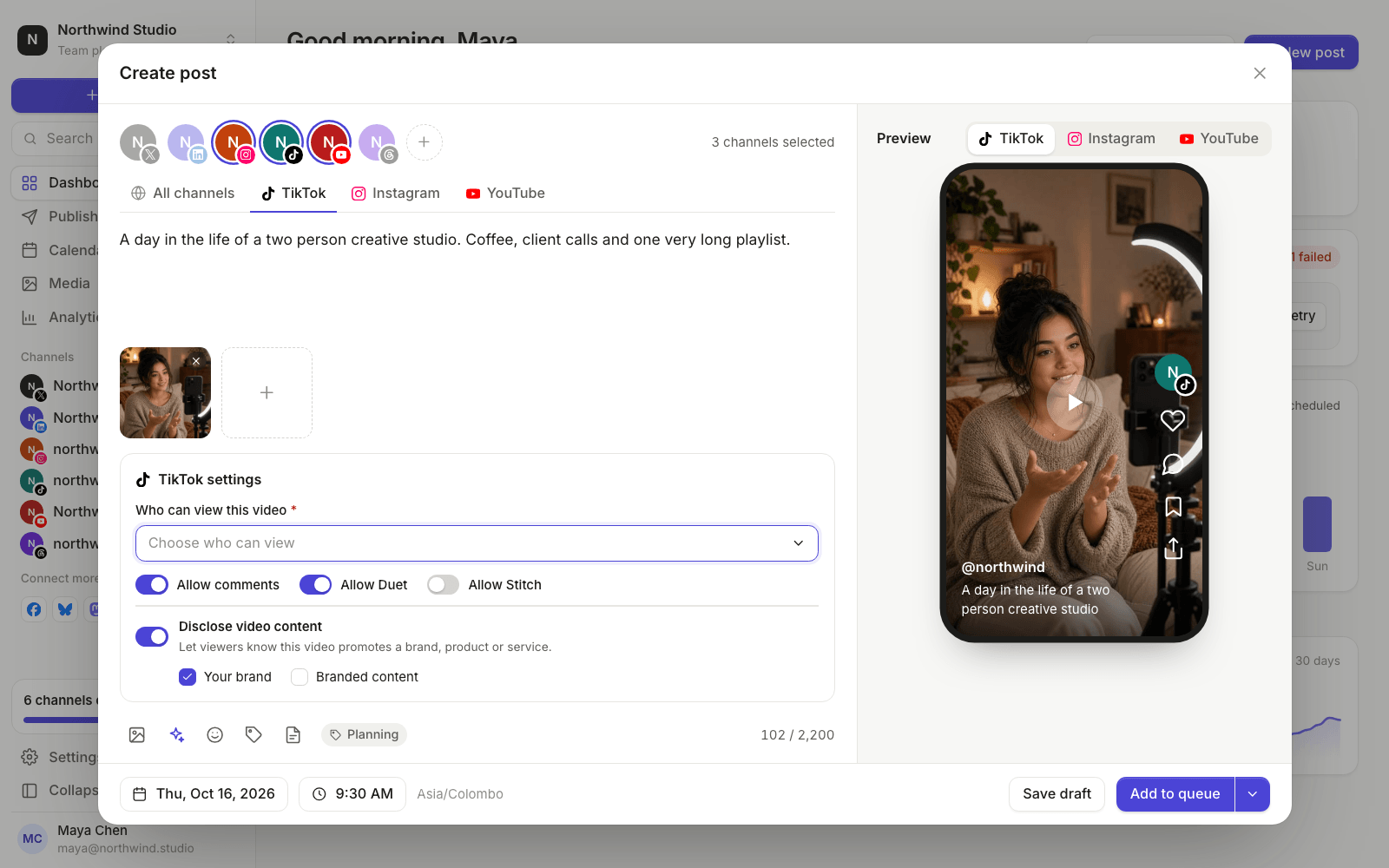
This is the part people skip, and it’s where TikTok is stricter than other networks. TikTok asks every app that publishes on your behalf to let you confirm exactly how each video is shared. PostGic follows those rules, so for every TikTok video you choose:
Who can view the video#
You pick from the options TikTok offers for your account, such as everyone, your friends or only you. There is no default. You have to choose each time, which is a good thing: it means a test video never goes public by accident.
Comments, Duet and Stitch#
Turn each one on or off for this video:
- Comments let people reply to your video.
- Duet lets people post their video side by side with yours.
- Stitch lets people use a clip of your video at the start of theirs.
If your account has turned any of these off in TikTok’s own settings, they’ll stay off.
Content disclosure#
If the video promotes something, you need to say so. There are two cases:
| If the video promotes… | Choose |
|---|---|
| Your own business, product or service | Your brand |
| Someone else’s brand, in exchange for payment or a free product | Branded content |
TikTok then labels the video so viewers know it’s promotional. Branded content can’t be set to “only you”, so if you’re disclosing it, pick a wider audience.
Not sure whether a video counts? If you got anything in return for making it, disclose it.
Step 5: Preview, then schedule#
Check the preview, including the video playback, to make sure the caption and cover look right. Then choose when it goes out:
- Pick a time for anything tied to a trend, launch or event.
- Add to queue for your regular videos, which fill the next free TikTok slot.
Times are shown in your workspace timezone, so you can plan for your audience even if you’re traveling.
Step 6: See what worked#
After a couple of weeks, open Analytics and choose your TikTok account. Compare followers, impressions and engagements with the previous period, and look at your top videos.
Ask what the best ones had in common. The hook in the first second? The topic? The length? Then plan your next batch around it. For a deeper look at timing, read how to find your best time to post.
Common questions#
Do I need a TikTok business account to schedule?#
No special account type is required to connect TikTok to PostGic. Sign in with the account you post from.
Why do I have to choose who can view every time?#
TikTok requires apps that post for you to make sharing an explicit choice, rather than assuming “public”. It protects creators from posting something by mistake.
Can I schedule the same video to YouTube and Instagram?#
Yes. Pick all three channels in the composer, then adjust the caption and settings for each. On YouTube you’ll also add a title and description. Our guide to scheduling Instagram posts covers the Instagram side.
What if a video fails to publish?#
It moves to the Failed list with a plain reason and a Retry button. The most common cause is an expired connection, which you can fix by reconnecting the account.
Batch once, post all week#
Film three videos this weekend, set their sharing settings, and schedule them for next week. You’ll feel the difference the first Monday you don’t have to think about TikTok.
Start on PostGic’s free plan, with no credit card needed. Get started for free.
 Anuj Shashimal